
Matter Setup Guide
 Sleepal Product ManagerOctober 8, 2026
Before You Begin
This document introduces the main smart home integration features supported by Sleepal. The content is mainly divided into two parts:
1. The control capabilities of Sleepal as a smart lighting device;
2. The status sensing and automation trigger capabilities that Sleepal can provide for smart home scenarios as a sleep and environmental sensor.
Please confirm that your Sleepal firmware version is 1.0.0.0251 or above, as this is the firmware version that supports Matter.
Notes:
• The following sensing functions are all calculated locally on the Sleepal device and do not rely on external networks or cloud services. The device only needs to be in a local network environment to normally output sensor status to smart home platforms, which can then be used to trigger corresponding automation scenarios.
• Sleepal’s smart home integration features are free features. Users can use them without subscribing to a membership.
1. Introduction to Sleepal Matter Features
1.1 Sleepal as a Basic Lighting Device
| No. | Feature Category | Feature |
|---|---|---|
| 01 | Lighting Control | Light On/Off [On/Off] |
| 02 | Lighting Control | Brightness Adjustment [0~100%] |
| 03 | Lighting Control | Color Temperature Adjustment [2500~5500K] |
| 04 | Lighting Control | RGB Adjustment [RGB Color Adjustment] |
| 05 | Lighting Control | Current Lighting Mode [Switching between RGB Mode and Color Temperature Mode] |
| 06 | Lighting Control | On/Off Status Switching |
1.2 Sleepal as a Sensor
| No. | Feature Category | Feature |
|---|---|---|
| 01 | Environmental Sensor | Temperature [°C/°F] |
| 02 | Environmental Sensor | Humidity [RH%] |
| 03 | Environmental Sensor | Light Intensity [lux] |
| 04 | Status Sensor | Presence Status [Occupied & Unoccupied] |
| 05 | Status Sensor | Wind-down Status [Occupied & Unoccupied] |
| 06 | Status Sensor | Sleep Trigger [Occupied & Unoccupied] |
| 07 | Status Sensor | Bed in/out [Occupied & Unoccupied] |
| 08 | Status Sensor | Alarm Status [Occupied & Unoccupied] |
| 09 | Status Sensor | Snooze Status [Occupied & Unoccupied] |
| 10 | Status Sensor | Lying Status [Occupied & Unoccupied] |
Core Feature: Implemented through virtual presence status sensors.
Core Sensor Feature Explanation
Sleepal acts as a trigger sensor to link with other smart home devices/custom scenes! Please note that Sleepal does not act as a smart home hub. It only provides sensor states to the smart home platform, and the actual scene automation needs to be created by the user within Apple Home or other smart home platforms.
Why are the sensor states shown as “Occupied” and “Unoccupied”?
Because Matter and Apple Home do not currently support most of Sleepal’s sleep-related sensor states directly, Sleepal uses virtual presence sensors to make these states available in smart home automations.
Sleepal’s sensor capabilities, we convert states such as sleep, nighttime get-up, wind-down, alarm, and others into “virtual presence sensor” trigger conditions that can be recognized by the platform.
In this setup, “Occupied” means the corresponding Sleepal state is active, such as Wind-down, Sleep Trigger, Nighttime Get-up, Alarm, or Snooze, while “Unoccupied” means that state is inactive.
Target supported scenarios: Presence Status(Entering the space)→ Wind-down → Sleep → Nighttime Get-up → Alarm/Snooze → Presence Status(Leaving the space).
1. Presence Status
The Presence Status result indicates whether Sleepal detects a person within its detection range. It is suitable for basic smart home automation. Sleepal acts as a presence sensor to show whether someone is in the space, supporting users in triggering customized home scenes.
| Platform Status | Status Meaning |
|---|---|
| Unoccupied | No person continuously detected |
| Occupied | A person nearby is detected |
Example scenario: When the user enters the bedroom, Sleepal detects someone nearby【Unoccupied → Occupied】, and can link with the main light to turn on automatically, slowly close the curtains, and start a preset bedroom scene; when no person is continuously detected【Occupied → Unoccupied】, it can automatically turn off the main light, turn off the air conditioner, or exit the scene to reduce unnecessary energy consumption.
2. Wind-down Status
The Wind-down Status result indicates whether Sleepal is currently enabling wind-down mode(whether triggered manually or by active wind-down mode). It is suitable for pre-sleep wind-down scenarios. When Sleepal enables wind-down, it links the whole home to enter the wind-down scene. When Sleepal stops wind-down, it links the whole home to end the wind-down scene.
| Platform Status | Status Meaning |
|---|---|
| Unoccupied | (Wind-down) inactive |
| Occupied | Wind-down active |
Example scenario: When Sleepal enables wind-down mode【Unoccupied → Occupied】, it can link with the bedroom main light to gradually dim, close the curtains, and adjust the air conditioner to a temperature for preparing to sleep, helping the user enter a relaxed pre-sleep state; when Sleepal wind-down ends【Occupied → Unoccupied】, it can automatically turn off related lights and audio and restore the normal bedroom scene.
3. Sleep Trigger
The Sleep Trigger result indicates whether the nearby user detected by Sleepal has transitioned from awake to asleep. It is suitable for executing sleep-related scenes after the user falls asleep.
| Platform Status | Status Meaning |
|---|---|
| Unoccupied | Sleep monitoring ended |
| Occupied | Sleeping |
Example scenario: When Sleepal detects that the user has fallen asleep【Unoccupied → Occupied】, it can automatically turn off the bedroom main light, pause TV or music playback, and switch the air conditioner to the sleep temperature, allowing the sleep scene to run automatically based on the user’s real sleep status instead of relying only on a fixed time.
4. Bed in/out
The bed in/out result represents two key nighttime get-up moments: when the user leaves the bed at night, and when the user returns to the bed. It is suitable for linking nighttime get-up scenarios.
| Platform Status | Status Meaning |
|---|---|
| Unoccupied | Bed in |
| Occupied | Bed out |
Example scenario: When Sleepal detects that the nearby user leaves the bed at night【Unoccupied → Occupied】, it can automatically link with the corridor light to turn on softly and adjust the bathroom light to nighttime brightness; when the user returns to the bed【Occupied → Unoccupied】, the system can automatically restore to the sleep state to avoid disturbing the user from continuing to sleep.
5. Alarm Status
The Alarm Status result indicates whether the Sleepal alarm is currently running. It is suitable for the user wake-up scenario.
It is compatible with the wake-up window feature. Within the set wake-up time range, Sleepal combines the detected sleep stage to determine a more suitable wake-up timing, instead of triggering the wake-up mode at a fixed wake-up time.
| Platform Status | Status Meaning |
|---|---|
| Unoccupied | Stopped |
| Occupied | Ringing |
Example scenario: When the Sleepal alarm starts running【Unoccupied → Occupied】, it can link with the bedroom lights to gradually brighten, slowly open the curtains, and adjust the air conditioner to a comfortable wake-up temperature; if it is in smart wake-up mode, Sleepal can select a more suitable timing within the set wake-up time range based on the user’s sleep status to trigger the wake-up scene.
6. Snooze Status
The Snooze Status result indicates whether Sleepal is currently in snooze status. It can link with a stronger wake-up scene to help the user wake up.
| Platform Status | Status Meaning |
|---|---|
| Unoccupied | Snooze inactive |
| Occupied | Snoozing |
Example scenario: After the user triggers snooze【Unoccupied → Occupied】, Sleepal can link with the bedroom lights to brighten further, slowly open the curtains, and gradually increase music or prompt sounds, helping the user move from “sleeping a little longer” to actually getting up.
7. Lying Status
The lying-down status indicates whether Sleepal determines that a nearby user is currently lying in bed.
| Platform Status | Status Meaning |
|---|---|
| Unoccupied | Not lying down (including no one present) |
| Occupied | Lying down |
2. Sleepal Setup Process
Apple Home is used as the example below.
Step 1: Bind Sleepal and complete Wi-Fi setup
Download the latest Sleepal app and scan the QR code in the app to bind your Sleepal device.
Please confirm that your Sleepal firmware version is 1.0.0.0251 or above, as this is the firmware version that supports Matter.
Step 2: Add Sleepal to Apple Home
Enable Matter pairing mode through the Sleepal app. (Please make sure your phone and Sleepal are connected to the same local network.)
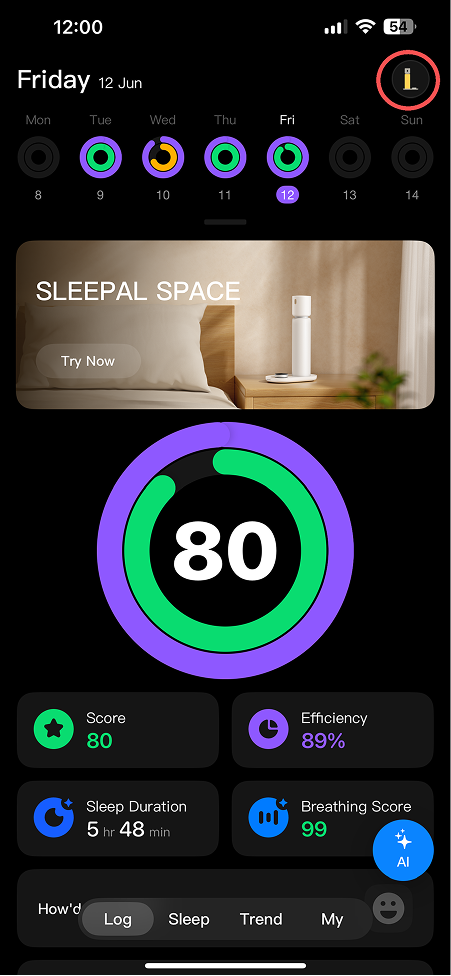
1. Enter the device control page
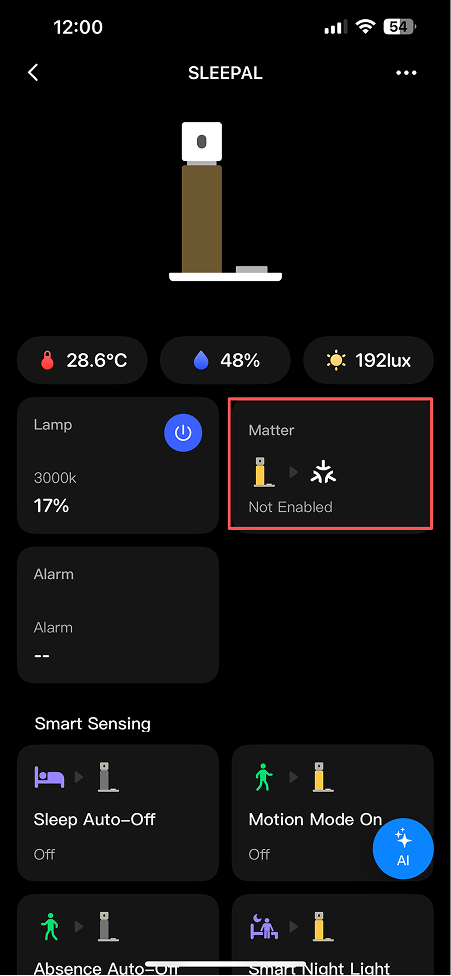
2. Select Matter control module
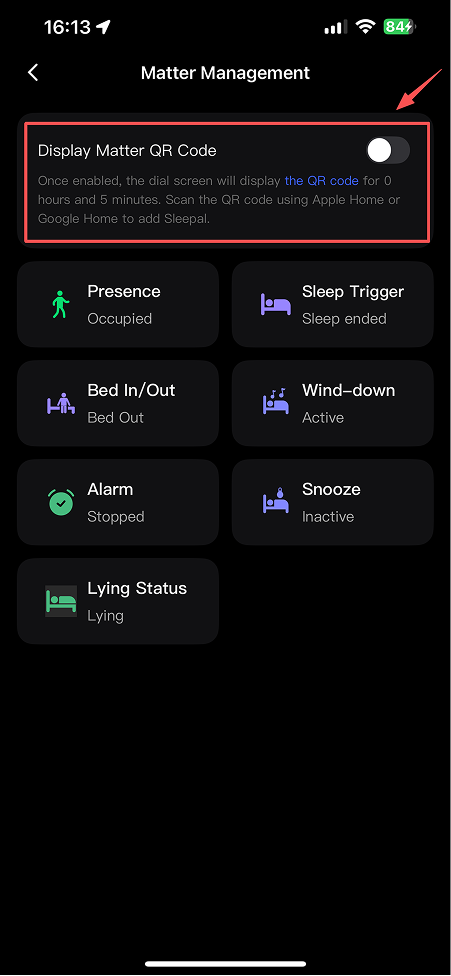
3. Enable Matter pairing mode
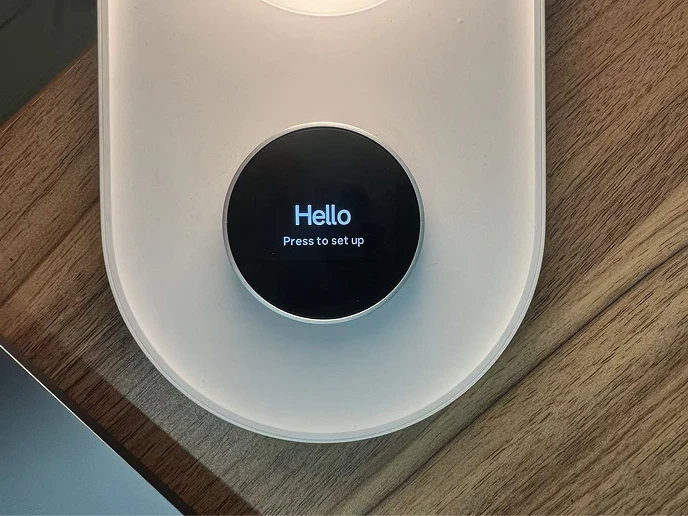
4. The device will automatically display the “Hello” page. Lightly press the knob.
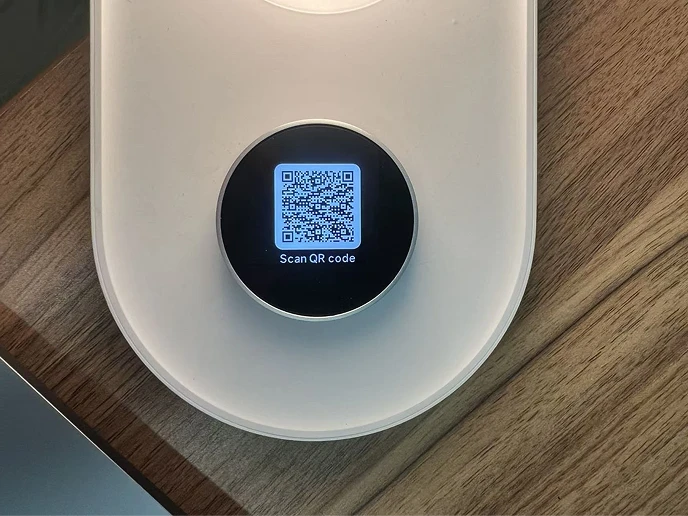
5. Get the Matter pairing QR code
Add Sleepal via Apple Home
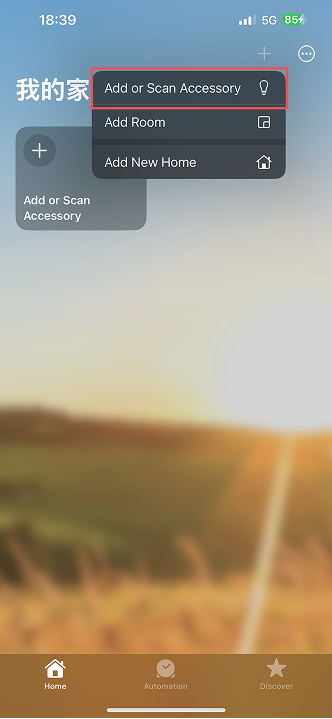
Apple Home APP
Select "Add or scan accessory"
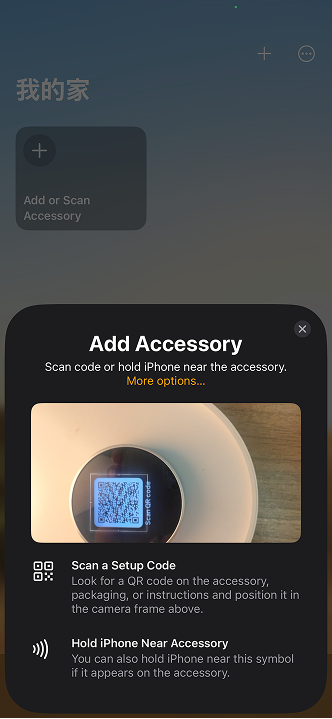
Apple Home APP
Scan the QR code shown on the Sleepal knob
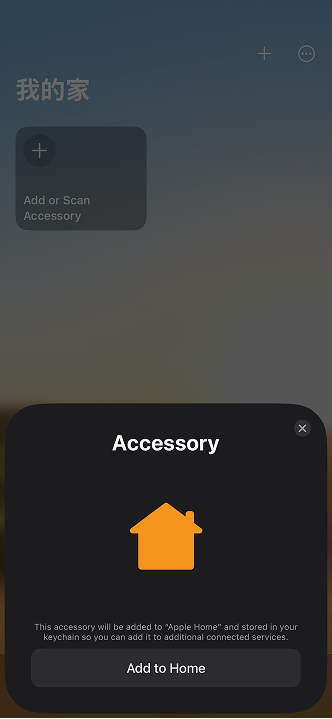
Apple Home APP
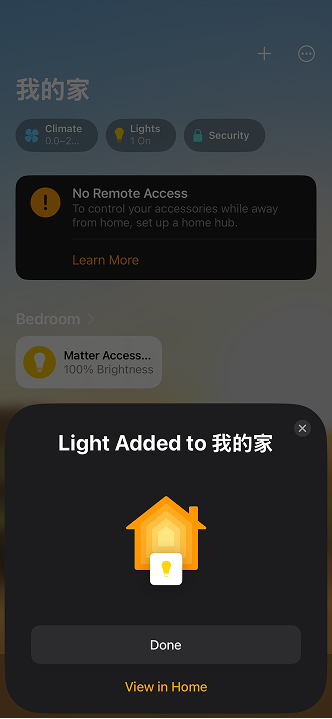
Select "Add to home"
Apple Home APP
Complete the pairing process
Step 3: Update Sensor Names in Apple Home
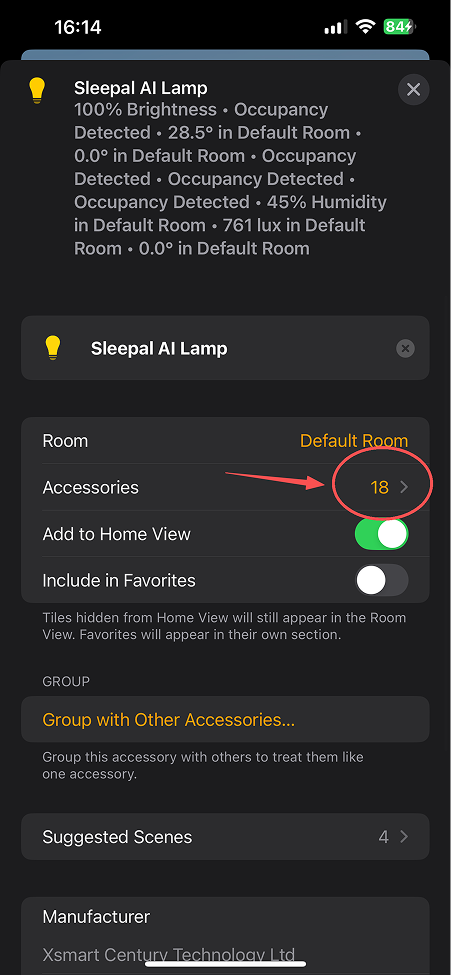
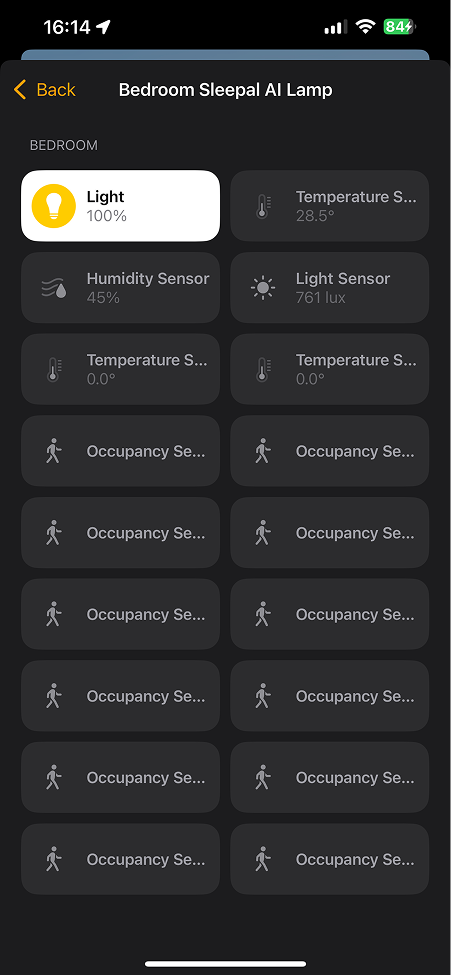
Why do I see 18 accessories after setup (17 sensors + 1 light)?
Because standard protocols such as Matter and platforms like Apple Home do not currently support most of Sleepal’s sensor capabilities directly, we convert states such as sleep onset, bed in/out, Wind Down, and alarm status into virtual occupancy sensor triggers that these platforms can recognize.
Why are some sensors currently not meaningful?
The sensors that currently have practical functionality include:
• 3 environmental sensors: temperature, humidity, and illuminance
• 7 status sensors: presence, Wind Down status, sleep status detection, bed in/out, alarm status, snooze status, and lying-down status
Some additional Sleepal-specific sensor features are still under development. For now, the 2 temperature sensors showing a value of 0 and the 5 unmapped occupancy sensors do not have any practical functionality.
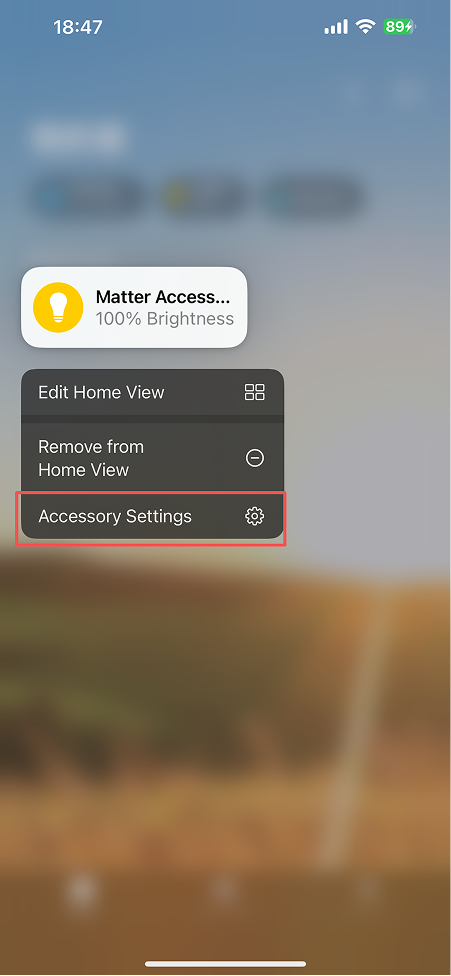
Apple Home Status Page
Apple Home APP
Long-press the Sleepal device
Apple Home APP
Select "Accessories"
Apple Home APP
1 light accessory + 17 sensor accessories
Identify What Each “Occupancy” Sensor Represents
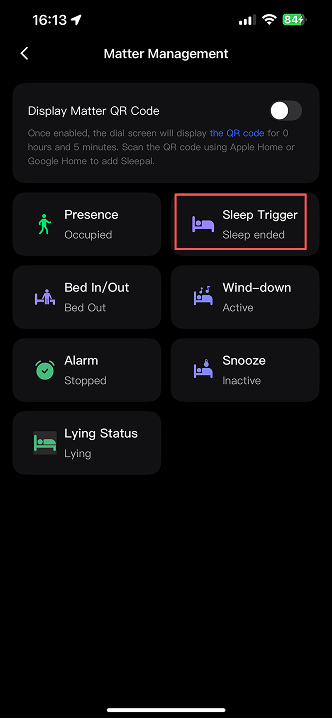
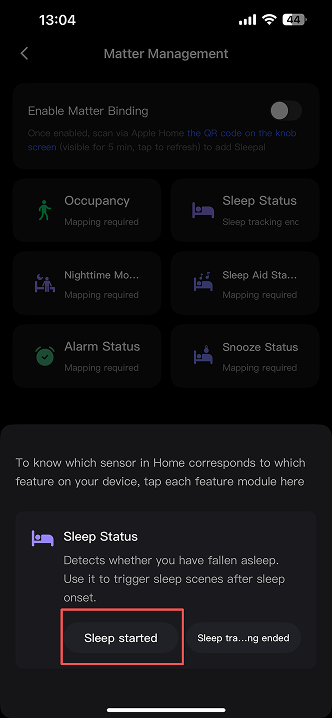
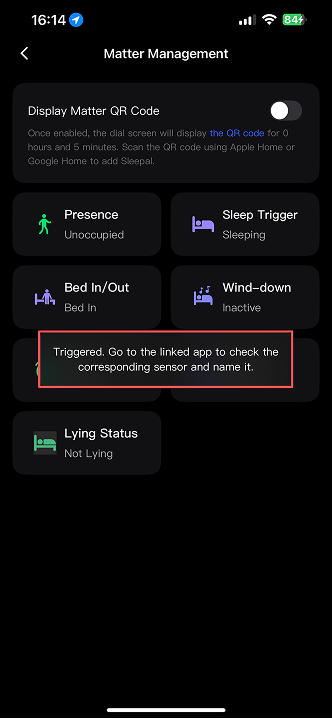
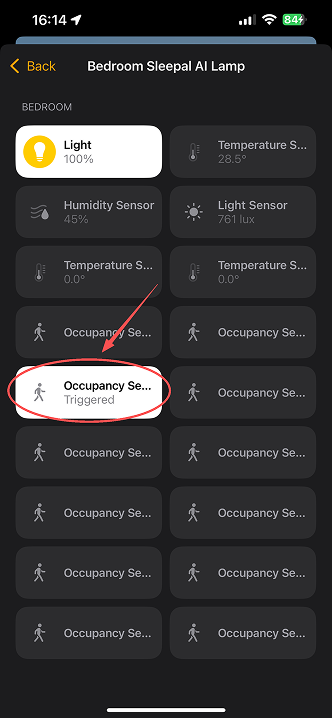
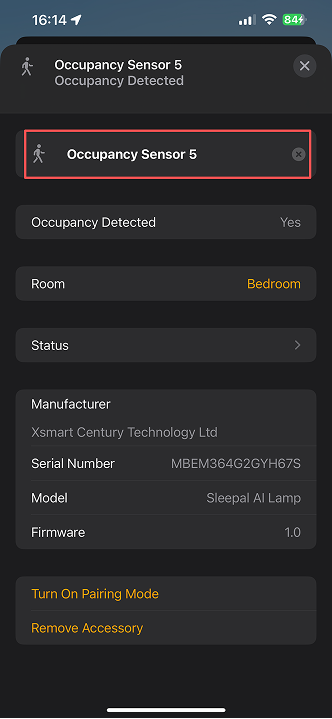
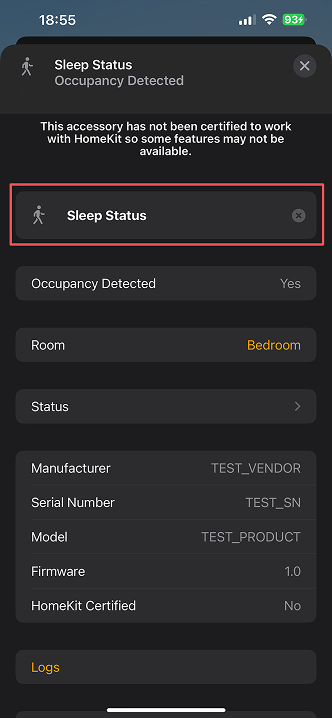
Apple Home may display multiple Sleepal sensors as generic “Occupancy” sensors. You can identify each sensor by triggering the corresponding Sleepal state and checking which sensor changes in Apple Home.
Sleepal APP Matter
1. Trigger one Sleepal state at a time
Sleepal APP Matter
2. Tap the "Sleep Start"
Sleepal APP Matter
3. The status is now available in Apple Home via Matter
Apple Home APP
4. Find the changed sensor in Apple Home—this is Sleep Status
Apple Home APP
5. Rename
Apple Home APP
6. Rename
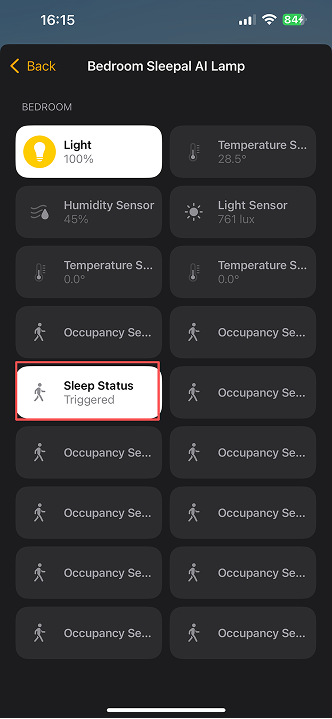
Apple Home APP
7. Confirm the new sensor name
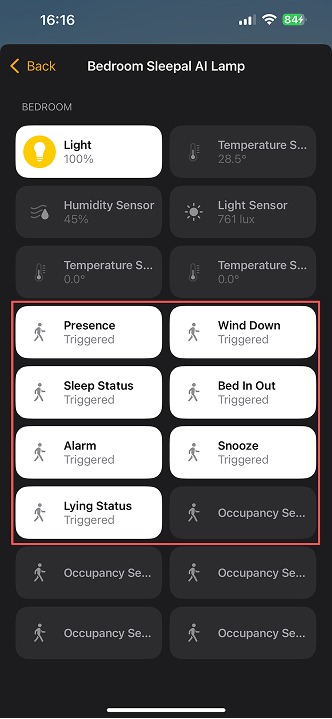
Apple Home APP
8. Repeat the same process to identify and rename the other Sleepal sensors
Other (Additional Notes for the Home Assistant App)
Add Sleepal to Home Assistant via the Home Assistant app
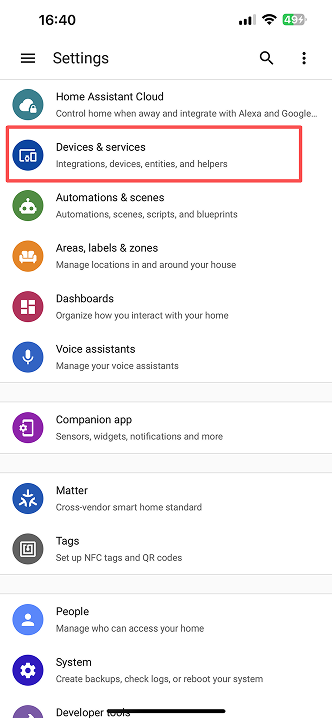
1. Select "Device & services"
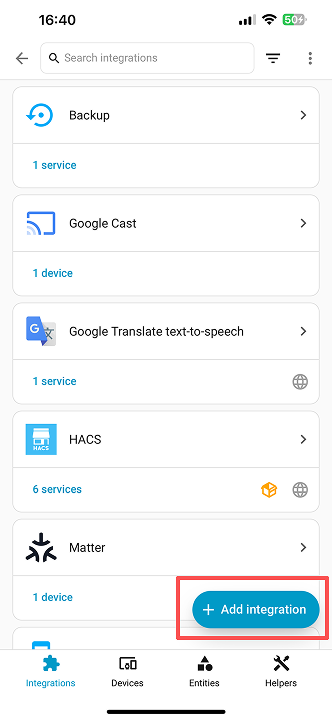
2. Select "Add integration"
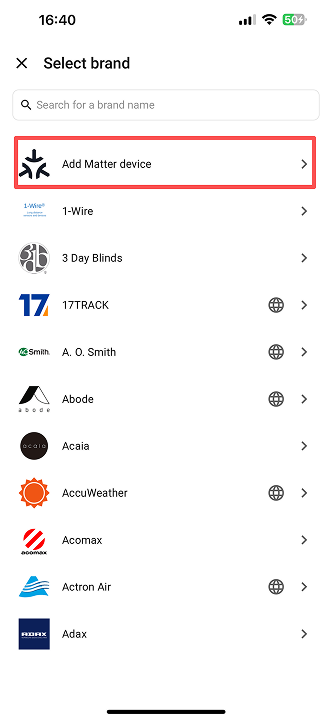
3. Select "Add Matter device"
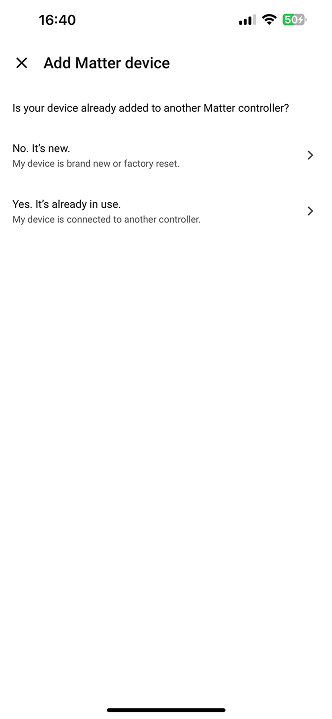
4. Choose a pairing method.
Method 1: If Sleepal has not been added to Apple Home or Google Home yet, select “No. It’s new.”
Method 2: If Sleepal has already been added to Apple Home or Google Home, select “Yes. It’s already in use.”
Share Article
At Sleepal, our mission is to awaken your potential through better sleep, naturally. We believe great technology should care for you, not complicate your life. Working quietly from your bedside, Sleepal helps you understand your sleep, wind down, and wake up gently.
Be First To Know
Subscribe for top stories, news and tips on how to transform your business with Sleepal.